3. Select an album or click New to create a fresh one.
4. Choose a visibility level.
Picasa Web Albums makes it easy to share your photos with the world -- or you can choose to keep your photos private. Use album visibility options to to decide who you want to share your photo albums with.
Public
Limited, anyone with the link
Limited
Only you
5. Choose an upload size.
Original Size: Uploads the image at the original image resolution (e.g. 4288 x 2848).
1600 pixels: Recommended, great for prints, sharing online albums, or for use as a screensaver.
1024 pixels: Good for sharing online albums with friends and family.
800 pixels: Uploads up to 800 pixels are free for all users of Picasa Web Albums. A good size for publishing images on blogs and webpages.
Prevention is the key! Make sure that your computer is protected at all times with a good anti-virus and anti-malware software program. Remember that your software expires at the end of a years time, so renew the subscription or make sure your "free" software is the latest version available.
When in doubt, "don't go there"! If an email is from someone you don't know, don't open it....no matter how tempting it is. Also be careful when surfing the web. Questionable sites should be avoided so that you don't end up with a malicious piece of software added to your machine.
Keep the machine up to date with "Windows Updates" for the latest security and other important updates that Microsoft offers.
It quickly gets annoying seeing some users posts- such as those who post hourly.
To hide an app story from your News Feed, click which appears when you hover over the top right of a story you want to remove. Select Hide to remove the individual story and to see more hiding options:
Unhide will put the story back into News Feed and is available right after hiding a story in case you change your mind.
Hide all by and Unsubscribe from will remove the post and prevent all future stories from an app. Clicking Hide all by will prevent all stories from that particular app from appearing in your News Feed. If the story is from an app that was created using a separate parent app, all stories from the parent app will also be prevented from appearing in your News Feed.
Report/Mark as Spam allows you to report spam from apps that you see in your News Feed.
To unhide stories at a later time:
Hover over the News Feed bookmark in the left column
Click the icon that appears to the left and select Edit Settings
Scroll to the Apps section and click the X next to the name of the app whose stories you want to unhide
Click in the upper-right corner of any Facebook page
Select Privacy Settings from the dropdown menu
Click on a setting (ex: Who can see your future posts?) to edit it, or use the left column to view your other settings
You can also quickly view and adjust some of the most widely used privacy settings and tools from your Privacy Shortcuts at the top right of any Facebook page.
To control the privacy for posts, photos and other stuff you share on your timeline, you can choose your audience when you post.
I often hear folks speak about the Gmailinterface as; 'too busy, too much' going on and thus 'overwhelming', if not even 'frustrating' and 'confusing'.
Here is an idea for those of you who are looking for a cleaner, simpler email program.
Microsoft has a free, web-based, e-mail program, called Outlook.com. Web-based, means your email lives in cyberspace, (like Gmail, Hotmail Yahoo, AOL) and can be accessed from any computer, anywhere. This of course means you do not need to ever worry about backing up your email or contacts.
The Microsoft Outlook program that comes with MS Office, or the old Outlook Express are software programs that allow you to access your email files from your computer only. This also means that when you get a new computer you need to make sure your files and contacts are backed up.
has a clear, clean interface- It has great tools for maintaining a clean, junk-free inbox, and built in viewers for things like videos and documents. It is a free program, so it does have some advertising on the right of the screen- but not very intrusive.
You can keep your current email address (even if it is a gmail or any other address) and just use this Outlook interface. Once you have an outlook account set up you will then have your favorite email address forwarded to this program- an easy setting change, that I should be able to talk you through.
If this sounds interesting and you want to check it out; you can get an Outlook.com account by going to the website and clicking theSign-up Now link at the bottom of the page. You’ll need to enter the appropriate personal information, create an e-mail address and password, and you’re done. If you have a current Hotmail or Windows Live account, you can log in directly. If you are happy with what you are working on now- disregard this post!
The first thing you need to do is to decide on the proper backup media for your needs. Do some research on the advantages of each, and choose the one which will best suit your needs
Here are a some choices:
1. Hard Drive (internal) - back up to another drive in your computer
2. Flash Drive - A flash drive is a small storage device that can be used to transport files from one computer to another. They are slightly larger than a stick of gum, yet many of these devices can carry all your files. A flash drive is easy to use; simply plug your flash drive into a USB port. The USB port will appear on the back of a desktop computer’s PC tower or on the side of a laptop.
3.Online Backup - A remote, online, or managed backup service, sometimes marketed as cloud backup, is a service that provides users with a system for the backup, storage, and recovery of computer files. This can be a free of paid service.
Instructions for backing up Documents to a Flash Drive
1. Double Click the “My Documents” folder located on your Desktop.
2. Once “My Documents” is open, hold down the CTRL key and tap the letter A- this will select all the files and folders
3. You’ll notice that all of the contents have been highlighted (turned blue) like
the image below.
4. Click EDIT again, but this time click COPY TO FOLDER
5. The following screen shows various locations that your files can be saved to.
Select the Flash Drive which may appear as “Removable Disk” (or choose
some other suitable location.)
6. Finally click COPY.
The progress of the data being copied will be displayed until the process is complete.
Once completed, you’ll have a full backup on your Flash Drive.
Below is a list of several free online backup plans . SugarSync seems to get the best reviews but all the plans listed are great options.
A free online backup plan is usually identical to the equivalent "pro" or "premium" plan offered by the same company. but it does not offer the same amount of storage.
If the free plan has enough storage space for your data, you can have a complete and permanent backup solution for free!
Comodo Backup offers 5 GB of free online backup space.
Comodo's interface is really straightforward and easy to use, which is something I can't say about the desktop software component of most online backup services.
One of the great things about SugarSync is that it's more than just a great free online backup service: it's also a really slick way to sync your data between computers and other devices like your phone.
Wednesday, February 20, 2013
Computer Tips Everyone Might Find Helpful
1. To quickly move between the fields of a web page try this; Say you're filling out an online form, e-mail, or other text field, To move quickly move from line to line, try by pressing the Tab key. Shift + Tab, will move the cursor back a line. For example, if you're filling out your name and the next field is your e-mail address you can press the Tab key to switch to the e-mail field
2. Did you know.... It is not necessary to type the 'www' or '.com' part of a web page. Type in just 'weather', or 'amazon' or 'econnection blog' ( you might need to add my name as I am not quite as well known as Amazon or the weather!) on the address bar.
3. Easy Internet browser shortcuts. Below are a few of my top suggested Internet browser shortcuts.
- Hold down the Ctrl key and press the + or - to increase and decrease the size of text.
- Press F5 to refresh or reload a web page.
- Press F11 to make the Internet browser screen full screen. Press F11 again to return back to the normal view.
- Press Ctrl + B to open your Internet bookmarks.
- Press Ctrl + F to open the find box in the browser to search for text within the web page you're looking at.
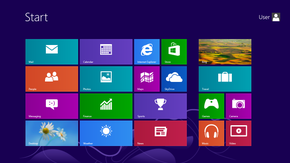
Windows 8 introduces significant changes to the operating system's platform, primarily, featuring a new Start screen with a grid of dynamically updating tiles that represent applications. The Start screen replaces the "Start menu" of earlier Windows versions. I, personally, like the change and found it easy to transition from the previous Windows programs.
Must Know Tips
The hottest quick-key short cuts.
Press the Windows Key, (located at the bottom your your keyboard) to toggle back and forth between the familiar desktop screen and the new tiled start screen.
The Windows key + E opens Explorer for quick access to folders.
The Windows key + X to get to the Quick Access Menu.
The Windows key + Z opens All Apps.
Customize your tiles
Move any tile by clicking and dragging the tile.
Use your mouse wheel to scroll left-to-right through your tiles.
Any desktop shortcut or program can be pinned to the Start screen by right-clicking the icon and choosing Pin to Start.
If there is a tile you want on your Taskbar, right-click the tile and choose Pin to taskbar.
Tuesday, December 11, 2012
Safe online shopping: Tips to avoid getting burned
You need to buy some gifts, and you need to buy them quickly. You can shop online with a nice glass of wine by your side!
Here are some easy ways to lock down your Web security this season, and still get all your shopping done in time.
Keep your browser updated
Start at the beginning. Whether you use Chrome, Firefox, Safari, or Internet Explorer, updating your browser will help to ensure that you’re getting the most up-to-date security protection.
Install malware-protection software
Another thing to check before you shop is your security software. The market has no shortage of utilities dedicated to protecting your computer from malicious attacks.
You can even find plenty of free applications for protecting your computer from malware and Internet attacks that could result from an unfortunate online shopping session. The bottom line: Anti-malware programs can't protect you from all attacks, But in this day and age, it's silly not to use some sort of baseline protection. I am a fan of MaywareBytes which can be downloaded for free from www.download.com
Buy from reputable online stores and sellers
Look for this logo when checking a site's legitimacy.
If you’ve never heard of the site you’re considering a purchase from, you have a number of ways to make sure it is legitimate.
Third-party organizations such as the Better Business Bureau Online and Truste give seals of approval to sites that meet their security and privacy standards.
Also, comparing products on sites like Bizrate can give you confidence that you're getting a fair price.
Look for the address-bar padlock symbol
A webpage should always be Secure Sockets Layer (SSL)-encrypted if you plan to use your credit card information to shop. SSL encryption ensures privacy by restricting the computers that can access the data being transferred, limiting access to you and the online retailer exclusively.
Most browsers indicate that the encryption is active with a padlock icon near the address bar, and the URL is preceded with https:// instead of http://, as shown below.
The padlock icon and 'https://' in Chrome.
Give out as little information as possible
Beware of nosy questions seeking personal information. For instance, a reputable online retailer will never need your Social Security number.
Generally it’s a good practice to give out the least amount of information the seller requires, so look over the required fields on forms and fill them out accordingly. Use the minimum number of fields that will allow your purchase to proceed.
Never give out your credit card number over email
It’s simple: Legitimate retailers will never ask for your credit card information or other sensitive personal details over email.
As mentioned above, the only time you should give out your credit card number and other personal info online is when you are on an SSL-encrypted webpage operated by a trusted retailer.
Know your rights
In the United States, online purchases you make with a credit card are protected by the Fair Credit Billing Act, which limits your responsibility for fraudulent or erroneous charges to $50.
Consumers are required to write a physical letter within 60 days detailing any complaint to the retailer, with a return receipt acting as proof that the creditor received the letter.
The Federal Trade Commission provides an example letter, so all you need to do is fill in the blanks with your information.
Use common sense
If a deal online seems too good to be true, it probably is.
If anything seems suspicious—for instance, if a retailer refuses to provide details on a product or avoids answering billing questions, or if you cannot find a phone number or address of the store—the best practice is to avoid it and shop with a tried-and-true online retailer instead.
Additionally, you should never feel pressured to give out information. If a retailer is requesting something from you that makes you uncomfortable, it's probably time to take your business elsewhere
.
A blog is a personal diary. A daily pulpit. A collaborative space. A political soapbox. A breaking-news outlet. A collection of links. Your own private thoughts. Memos to the world.
Your blog is whatever you want it to be. There are millions of them, in all shapes and sizes, and there are no real rules.
The activity of updating a blog is “blogging” and someone who keeps a blog is a “blogger.” Blogs are typically updated regularly using software that allows people with little or no technical background to update and maintain the blog. In simple terms, a blog is a web site, where you write stuff on an ongoing basis. New stuff shows up at the top, so your visitors can read what's new. Then they comment on it or link to it or email you. Note the comment link at the bottom of this blog.
A mobile device has changed the ways you interact with the computer. It neither needs a mouse nor a giant physical keyboard any more.
How to Cut, Copy and Paste
This looks simple but can be tricky sometimes when you use different apps. In general, these steps can be used in Mail or some other apps:
Double-tap to select a word, or tap once with two figures to select a paragraph. (Note)
Drag the handles to adjust the area if needed, then select Cut or Copy.
Tap an insert point then tap the cursor, or more directly, touch and hold an insert point.
Select Paste.
Note: Step 1 doesn't work in a browser like Safari since "double-tap" has been used to enlarge a webpage. Instead, use "touch and hold" to copy text or an image. If "touch and hold" shows a block on a certain webpage, try "tap and touch-and-hold".
Sunday, August 26, 2012
Here is a Useful and not so well known
Google Chrome tip.
Did you know Chrome (a browser developed by Google) is a free download that can be used on Smart Phones, Macs, iPads and PC's. I like it because I think it works pretty fast.
Here is one of the fun features it can do -
Have you ever wanted the definition of a word quickly? Just open Google Chrome and type in the word, in the address bar line,whose definition you are looking for, press Enter.
You will get the results of dictionaries and similar sites. Try typing in blogging and check it out!
The internet strives to keep us all connected in a variety of ways. From social networking to like-minded discussion boards to other forms of groups, people want to be around other like-minded people; even if "around" is relative and simply means that you share a collective experience online, still, around is preferred.
So it is with some interest that you might come across an unsolicited offer (Hmmmm, I'm always suspicious of unsolicited offers.....) from LivingSocial.com and Groupon.com. These are bothdeal-of-the-day websites that feature discounted gift certificates usable at local or national companies They are free to subscribe to and are a good deal, but only if it is something you would have bought anyway.
How Does Groupon Work for the Customer? Groupon itself is a free service for you and me to join. Each day, Groupon will send an email announcement to its subscribers, describing the deal-of-the-day in that metro area. Commonly, the deals are 50% discounts at a particular restaurant, or 50% discounts at a particular store. If you like the deal-of-the-day, then you purchase an electronic coupon directly from Groupon using your credit card or PayPal account. You print that coupon, take it to the restaurant or store, and redeem it for commonly double the value you paid.
A word of caution is you will see many deals that are so good you are tempted to buy them... they are a good deal but, ONLY , if it is indeed something you would have bought anyway. Living Social also offers a new deal each day to its members who subscribe via email. Once a deal has been purchased, members are e-mailed their redemption vouchers the following business day. Members must either print out their vouchers or download the LivingSocial app on their smart phones. Below is a of living social offers you might see;
Daily Deals
daily offers encouraging local discovery by connecting consumers to handpicked merchants at significant savings
Escapes
distinctive travel experiences crafted to inspire easy exploration of destinations across the street and around the world
Families
valuable kid-and-parent-approved offers that help families get out and play together
Adventures
uniquely packaged activities encouraging members to meet new people and try something different
Takeout & Delivery
the easiest way to find, order, and enjoy great food from local restaurants
Gourmet
high-end culinary experiences available exclusively to select members
Select "Settings" in the upper right corner of the page.
Enter your preferred signature text in the box next to the "Signature" option (typing text into that box will automatically turn on the signature option).
Select "Save Changes" to confirm your signature.
Adding a Signature to your MAC Mail
You can add one or more signatures for each email account. The Signature pop-up menu in the header of a new message lets you choose the signature for a message.
1. Choose Mail; Preferences and click Signatures. If you have more than one email account, select the account you want to create a signature for.
2. Click the Add (+) button and enter a description for the signature. Mail creates a default signature for you.
3. Select any part of the default signature that you don’t want to use and enter your own text. Select “Always match my default message font” or use the Format menu to change the font, color, style, and alignment of your signature text.
4. When you add formatting, your signature becomes rich text. You can also drag a picture or a vCard file to your signature.
5. Use the Choose Signature pop-up menu to choose the default signature for the account.
Choose None if you don’t want a signature to appear automatically.
To have Mail randomly select a signature, choose In Random Order.
To have Mail insert each of your signatures in order, choose In Sequential Order.
To change the order, drag the signatures in the list.
6. If you want your signatures to appear above the quoted text in a reply, select "Place signature above quoted text."
To Create a Signature in Windows Live Mail
1. Click the Blue Button in the top left 2. Select Options 3. Click Mail
4. Click the Signatures tab
5. Configure your signature and enable it for all outgoing messages
6. When you are done click Apply and then click OK, Click Save.
Familiarized yourself with phishing scams and techniques, which are used to trick you into divulging your account information, such as passwords and account numbers.
Online banking sites, Paypal, EBay, Amazon, and other popular sites that require logins are popular targets.
Use a Safe Password
Websites that store confidential data, such as an online bank site need to use strong passwords. Also, it is highly recommended that you use a different password for each website that requires a login. If you need help remembering your passwords consider using a password manager.
Strong passwords should not be whole words.
Try using symbols and numbers mixed in with letters. EX: T@he&f~At(c#at (the fat cat)
Use Caution when Accepting or Agreeing to Prompts
When prompted to install any program or add-on make sure to read and understand the agreement before clicking on the Ok button.
If you do not understand the agreement or feel it is not necessary to install the program cancel or close the window.
Additionally, when installing any program watch for any check box that asks if it's ok to install a third-party program, toolbar, etc. These are never required and often cause more issues than good. Leave these boxes unchecked.
There are a large number of people that have a Facebook page as it is a great way to get in touch with your family and old friends and to share information about your life with your friends all over the world. While facebook reigns as the most popular social media site out there, it does caution it’s users to limit the information they post online as it is accessible by anyone and this can lead to identity theft and many other concerns. If you are investigating facebook and trying to figure out if you should start up your own profile, here are some pros and cons to facebook that will aid in making your decision a little easier.
Pros of Facebook
Facebook is a great way to connect with your old high school and college classmates.
Do you have loved ones that live far away? Facebook helps you to stay connected, it also allows you to share and view pictures with them of recent of vacations and new grandchildren. Facebook provides a great outlet where you can see grandchildren and nieces and nephews grow up, and share your life.
Companies and individuals use Facebook to promote their companies and services. If you have a charity event, Facebook is the way to get people to connect with you and hopefully support it.
Cons of Facebook
The “friend” game. Remember the old high school bully who has now changed his or her ways? Well what do you do if they want to be your Facebook friend? . The good thing is you really don’t have to add everyone.
The Facebook newsfeed. This is where all the new information is posted or the profiles that have status updates with a lot of comments. The newsfeed can be nice but it can also become really annoying. The newsfeed is where a lot of information is shared and you may be thinking to yourself “who cares that your neighbor’s dog barks?” There are a lot of people that just want to talk and they use Facebook as that outlet.
If you own a Kindle or other eBook then you know the convenience of having multiple books with you while carrying only that one little device.
Of course you also know the cost of putting those books on your device… leaving us with a love-hate relationship.
eBooks have been available from your public library for quite a while and recently eBooks for Kindle have become available in more than 11,000 library systems.
Go online and check your library website, or call the library and ask to be sure.
While the specifics of each library system will differ, overall I found the process quite easy and it starts where borrowing a library book always starts… with a library card. If you don’t have one, get one.
You don’t have to actually go to the library to check out Kindle books, but if you don’t already own a library card then you’re going to need to stop by and get one. After that, you can get Kindle library books online any time day or night.
Take full advantage of the Windows mouse Snap To feature, which will automatically move your mouse to buttons that appear in a dialog box.
For example, if you delete a file or close a window you may get a prompt asking you if you are sure you want to perform the task. With the Snap To feature enabled, the mouse cursor automatically moves to the Ok button, so all you will have to do is click the mouse button if you agree. This saves you the time of having to move the mouse cursor over to the Ok button and then click Ok.
To enable this feature open the Mouse properties under the Windows Control Panel and check the Snap To check box under the Pointer Options tab.
You can create new documents from scratch or upload existing documents, spreadsheets and presentations. There's no software to download, and all your work is stored safely online and can be accessed from any computer.
Here is How:
Click on this black arrow and watch the short video


 which appears when you hover over the top right of a story you want to remove. Select
 icon that appears to the left and select Edit Settings
 in the upper-right corner of any Facebook page





 Double-tap to select a word, or tap once with two figures to select a paragraph. (Note)


