EMBRACE TECHNOLOGY FEARLESSLY

EMBRACE TECHNOLOGY FEARLESSLY
www.econnectionmaine.com

Monday, July 22, 2013

FACEBOOK Tips

How do I hide or unhide stories from a 

particular source in my News Feed?

It quickly gets annoying seeing some users posts- such as those who post hourly.
To hide an app story from your News Feed, click  which appears when you hover over the top right of a story you want to remove. Select Hide to remove the individual story and to see more hiding options:
  • Unhide will put the story back into News Feed and is available right after hiding a story in case you change your mind.
  • Hide all by and Unsubscribe from will remove the post and prevent all future stories from an app. Clicking Hide all by will prevent all stories from that particular app from appearing in your News Feed. If the story is from an app that was created using a separate parent app, all stories from the parent app will also be prevented from appearing in your News Feed.
  • Report/Mark as Spam allows you to report spam from apps that you see in your News Feed.

To unhide stories at a later time:

  1. Hover over the News Feed bookmark in the left column
  2. Click the  icon that appears to the left and select Edit Settings
  3. Scroll to the Apps section and click the X next to the name of the app whose stories you want to unhide
  4. Click Save

Where are my privacy settings?

To view and adjust your privacy settings:
  1. Click  in the upper-right corner of any Facebook page
  2. Select Privacy Settings from the dropdown menu
  3. Click on a setting (ex: Who can see your future posts?) to edit it, or use the left column to view your other settings
You can also quickly view and adjust some of the most widely used privacy settings and tools from your  Privacy Shortcuts at the top right of any Facebook page.
To control the privacy for posts, photos and other stuff you share on your timeline, you can choose your audience when you post.

Friday, May 17, 2013

Another Email Option to Think About...Outlook.com

I often hear folks speak about the Gmail interface as;  'too busy, too much' going on and thus 'overwhelming', if not even 'frustrating' and 'confusing'.

Here is an idea for those of you who are looking for a cleaner, simpler email program.  

Microsoft has a free, web-based, e-mail program, called Outlook.com.  Web-based, means your email lives in cyberspace, (like Gmail, Hotmail  Yahoo, AOL) and can be accessed from any computer, anywhere.  This of course means you do not need to ever worry about backing up your email or contacts.

The Microsoft Outlook program that comes with  MS Office, or the old Outlook Express are software programs that allow you to  access your email files from your computer only. This also means that when you get a new computer you need to make sure your files and contacts are backed up. 


 has a  clear, clean interface-  It has great tools for maintaining a clean, junk-free inbox,  and built in viewers for things like videos and documents. It is a free program, so it does have some advertising on the right of the screen- but not very intrusive.


You can  keep your current email address (even if it is a gmail or any other address) and just use this Outlook interface. 

Once you have an outlook account set up you will then have your favorite email address forwarded to this program- an easy setting change, that I should be able to talk you through.
If this sounds interesting and you want to check it out; you can get an Outlook.com account by going to the website and clicking the Sign-up Now link at the bottom of the page. You’ll need to enter the appropriate personal information, create an e-mail address and password, and you’re done.  If you have a current Hotmail or Windows Live account, you can log in directly.

If you are happy with what you are working on now- disregard this post!


Friday, April 19, 2013

Do you Know How to Back up your Computer Files?


The first thing you need to do is to decide on the proper backup media for your needs.  Do some research on the advantages of each, and choose the one which will best suit your needs
Here are a some choices:

1.  Hard Drive (internal) - back up to another drive in your computer

2.  Flash Drive A flash drive is a small storage device that can be used to transport files from one computer to another. They are slightly larger than a stick of gum, yet many of these devices can carry all your files.  
A flash drive is easy to use; simply plug your flash drive into a USB port. The USB port will appear on the back of a desktop computer’s PC tower or on the side of a laptop.

3. Online Backup -  remote, online, or managed backup service, sometimes marketed as cloud backup, is a service that provides users with a system for the backup, storage, and recovery of computer files. This can be a free of paid service.


Instructions for backing up Documents to a Flash Drive

1. Double Click the “My Documents” folder located on your Desktop.

2. Once “My Documents” is open, hold down the CTRL key and tap the letter A- this will select all the files and folders

3. You’ll notice that all of the contents have been highlighted (turned blue) like
the image below.

4. Click EDIT again, but this time click COPY TO FOLDER

5. The following screen shows various locations that your files can be saved to.
Select the Flash Drive which may appear as “Removable Disk” (or choose
some other suitable location.)

6. Finally click COPY. 
      The progress of the data being copied will be displayed until the process is complete.
Once completed, you’ll have a full backup on your Flash Drive.


Below is a list of several free online backup plans .   SugarSync  seems to get the best reviews but all the plans listed are great options.
A free online backup plan is usually identical to the equivalent "pro" or "premium" plan offered by the same company. but it does not offer the same amount of storage. 
If the free plan has enough storage space for your data,  you can have a complete and permanent backup solution for free!

Comodo Backup
Comodo Backup Logo© Comodo Security Solutions, Inc.

Comodo Backup offers 5 GB of free online backup space.
Comodo's interface is really straightforward and easy to use, which is something I can't say about the desktop software component of most online backup services.


MiMedia Logo© MiMedia, Inc.

MiMedia's Free plan offers a whopping 7 GB of backup space for free.
 MiMedia's free 7 GB of online backup space is the industry's largest.
Real-time backup, online music, photo, and video players, and easy file sharing make MiMedia a pretty solid online backup option, free or otherwise


SugarSync Logo© SugarSync, Inc.
SugarSync offers 5 GB of online backup for free.
One of the great things about SugarSync is that it's more than just a great free online backup service: it's also a really slick way to sync your data between computers and other devices like your phone.

Wednesday, February 20, 2013


Computer Tips Everyone Might Find Helpful

1.  To quickly move between the fields of a web page try this; 

Say you're filling out an online form, e-mail, or other text field, To move quickly move from line to line, try by pressing the Tab key.    Shift + Tab, will  move the cursor back a line.
For example, if you're filling out your name and the next field is your e-mail address you can press the Tab key to switch to the e-mail field


2. Did you know....
      It is not necessary to type the 'www' or '.com' part of a web page. Type in just 'weather', or 'amazon' or 'econnection blog' ( you might need to add my name as I am not quite as well known as Amazon or the weather!) on the address bar.


3. Easy Internet browser shortcuts.


 Below are a few of my top suggested Internet browser shortcuts.

  • - Hold down the Ctrl key and press the + or - to increase and decrease the size of text.
  • - Press F5 to refresh or reload a web page.
  • - Press F11 to make the Internet browser screen full screen. Press F11 again to return back to the normal view.
  • - Press Ctrl + B to open your Internet bookmarks.
  • - Press Ctrl + F to open the find box in the browser to search for text within the web page you're looking at.
Apple Short Cuts
  • COMMAND + HOME: Go to your Home page.
  • END: Scroll to bottom left corner of a web page.
  • COMMAND + D: Add a Bookmark.
  • COMMAND + F: Find.
  • COMMAND + N: Open new window.
  • COMMAND + Q: Quit Safari.
  • COMMAND + R: Reload page.


Thursday, January 10, 2013

Windows 8 is Kind of Fun

Windows 8 Basics


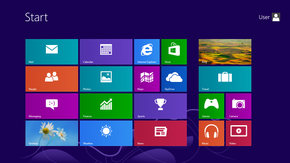
Windows 8 introduces significant changes to the operating system's platform, primarily, featuring a new Start screen with a grid of dynamically updating tiles that represent applications. 

The Start screen replaces the "Start menu" of earlier Windows versions. 

I, personally,  like the change and found it easy to transition from the previous Windows programs.


 Must Know Tips


The hottest quick-key short cuts.
  • Press the Windows Key, (located at the bottom your your keyboard) to toggle back and forth between the familiar desktop screen and the new tiled start screen. 
  • The Windows key + E opens Explorer for quick access to folders.
  • The Windows key + X to get to the Quick Access Menu.
  • The Windows key + Z opens All Apps.

Customize your tiles
Windows 8 tiles

  • Move any tile by clicking and dragging the tile. 
  • Use your mouse wheel to scroll left-to-right through your tiles.
  • Any desktop shortcut or program can be pinned to the Start screen by right-clicking the icon and choosing Pin to Start.
  • If there is a tile you want on your Taskbar, right-click the tile and choose Pin to taskbar.